
The custom image and video generation plugins require API access.
If you don’t have that, my plugins will not work.
Headache?
Nope, made it super simple. Now get that API Key. Don’t forget to save it and then buy your plugins and elevate your store for pennies!!
Grok API Setup + Virtual Fitting Room Plugin Guide
Follow these steps to create your xAI (Grok) API account, add credits, generate an API key, then install the Virtual Fitting Room plugin on WordPress.
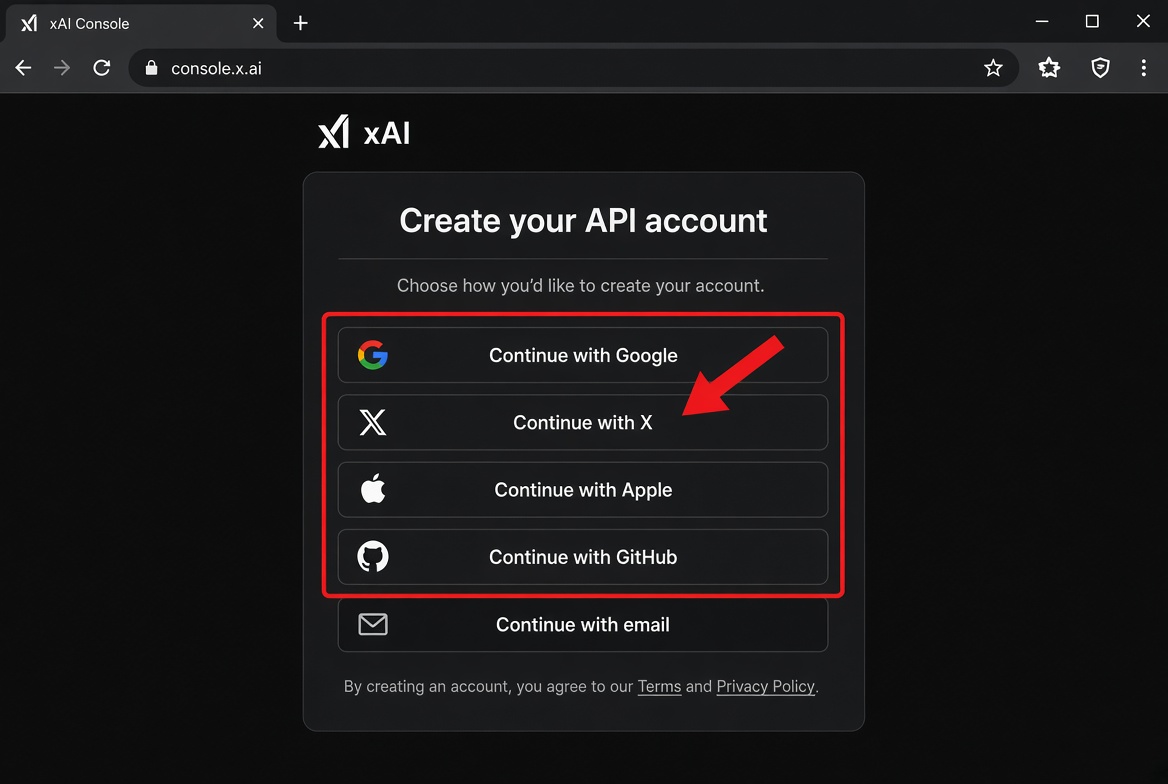
Step 1: Create your xAI API Account
Go to the official console and sign up. You can use Google, X (Twitter), Apple, GitHub, or email.
Open Sign Up Page →
Step 2: Add Money (Credits) to the API
Once logged in, go to Billing → API Spend Management (or look for Credits / Billing in the left sidebar). Buy prepaid credits — start with $5–$10. Your API usage is deducted from this balance. Requests fail if the balance hits $0.
Open Billing Page →
Step 3: Generate Your API Key
Go to API Keys in the left sidebar and click Create API Key. Name it something clear (e.g. “Virtual Fitting Room”). Copy the key immediately — it is only shown once. It starts with xai-.

https://api.x.ai/v1
Step 4: Install the Virtual Fitting Room Plugin on WordPress
1. Download the plugin ZIP file.
2. In WordPress admin, go to Plugins → Add New → Upload Plugin.
3. Choose the ZIP and click Install Now, then Activate.
4. Open the plugin’s settings (usually under Settings or a new menu item for Virtual Fitting Room).
5. Paste your Grok API key into the API Key field and save.

This guide uses annotated mockups based on the current xAI Console (console.x.ai). The real interface may have minor visual differences, but the locations and buttons are accurate as of late 2026. Always copy your API key immediately when it is shown.
What do you think?